Appx D : Troubleshooting
This section covers common errors and connectivity problems that may occur while using PVCAD, along with step-by-step instructions for resolving them.
Resolving Firewall and Connectivity Issues
If you experience difficulty downloading or launching PVCAD—especially if you encounter a 500 code error—the issue may be related to your system’s firewall settings. Steps to Allow PVCAD Through the Firewall (Windows):
- Open the Start menu and search for Allow an app through Windows Firewall.
- In the Firewall settings panel, click Change settings.
- Click Allow another app.
- Browse to your PVCAD installation directory.
- Add the following executable files, if they are not already listed:
PVCAD.exeAcWebBrowser.exe
- Confirm changes and close the settings window.
These steps ensure that PVCAD has the necessary permissions to communicate with its services and licensing system.
“Index Out of Range” Error
The Index Out of Range Error typically occurs when the site plan is drawn at an incorrect scale. Check your units are matching for each of your drawing properties. The drawing units may be set to inches instead of feet.
Resolution Steps:
- Verify that the site plan units are set correctly (preferably in feet or meters).
- Check the physical scale of the roof outline in the model space.
- Redraw or rescale the roof area to reflect the actual intended dimensions.
- Once the roof is properly sized, reattempt the workflow that triggered the error.
Correcting the scale ensures that wind zone calculations are completed successfully, and the error should no longer appear.
PVCAD Map Not Working
If you find the PVCAD Map or commands are not working as intended, this is likely a firewall issue. If you are using the PVCAD Bundle and you notice core functions like the Map not working, please try to relaunch PVCAD and “Run as Administrator”. You will only need to do this one time and this will provide PVCAD with the necessary permissions to operate as intended.
PVCAD Can’t Find Templates
Some network firewalls block file imports from unrecognized sources. If you are having trouble adding PVComplete templates to AutoCAD, check with your IT department and ask to greenlight all URLs that contain “pvcomplete”. If you receive the error shown below, or something similar saying that the ‘Template’ could not be found, please follow the steps below.
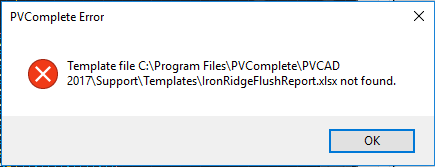
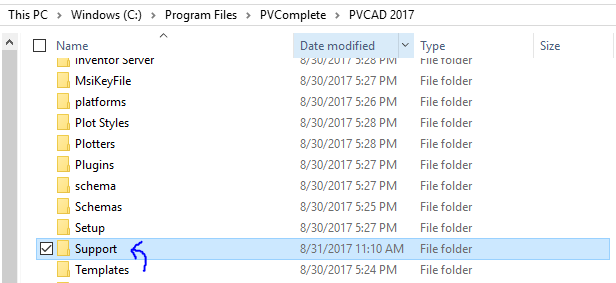
- Navigate to the PVCAD Installation Directory. You should see a ‘Templates’ folder and a ‘Support’ folder right next to each other.
- Drag the ‘Templates’ folder into the ‘Support’ folder.
- Try running your process again.
Buttons are Not Appearing in PVCAD Window
If buttons do not appear in the PVCAD window (typically the panel on the right-hand side of AutoCAD), please navigate to your machine’s Display options and reduce the Scale of your display. If this does not solve the issue please email support@pvcomplete.com with a screenshot of the issue and your screen resolution.